
Every time you hit send on a mass email with a quarterly report or a company newsletter, you are likely sharing more than just the text and images. Hidden inside that PDF file is a digital fingerprint: author names, internal server paths, creation timestamps, and even deleted comments. For marketing teams and corporate communicators, this invisible data can accidentally expose internal workflows, employee identities, or proprietary project timelines to anyone who knows where to look.
Cleaning this metadata isn't just about paranoia; it is a standard privacy practice for any organization distributing documents at scale. When you share a PDF publicly, you lose control over who sees what. A recipient might not care about your document's history, but a competitor, a journalist, or a malicious actor certainly will. The good news is that scrubbing these files is straightforward if you know which tools actually work and which ones just pretend to.
The Invisible Risk of Unsanitized PDFs
Metadata is essentially data about data. In the context of a PDF, it lives in two main places: the legacy Info dictionary and the modern XMP stream. Most people think of a PDF as a static image of a document, but technically, it is a container holding content streams alongside descriptive tags.
| Metadata Field | What It Reveals | Risk Level |
|---|---|---|
/Author |
Name of the person who created or last edited the file. | High (Identity Exposure) |
/Creator / /Producer |
Software used (e.g., Microsoft Word, LaTeX, specific plugin versions). | Medium (Tech Stack Insight) |
/CreationDate / /ModDate |
Exact timestamps of when the document was made or changed. | Medium (Timeline Reconstruction) |
/Keywords |
Internal tags, project codes, or confidential search terms. | High (Content Leakage) |
/Trailer ID |
Unique document identifiers linking back to original drafts. | Low-Medium (Traceability) |
Imagine sending out a financial report. If the /Author field still lists "John Doe - Internal Draft v3," you have inadvertently told your audience that this is an internal draft and revealed the editor's name. Worse, if the /Keywords include terms like "Q4 Losses" or "Layoff Plan," you have leaked strategic information without changing a single visible character in the document. This happens because most word processors and design tools automatically embed this information by default.
Why "Save As" Doesn't Fix the Problem
A common myth among non-technical staff is that saving a document as a new file or printing it to PDF strips the metadata. While printing to PDF *can* sometimes reduce metadata, it often re-rasterizes the content, lowering quality, or fails to strip the XMP stream entirely. Modern PDF viewers are sophisticated enough to read both the Info dictionary and the XMP packet. If you only clean one, the other remains accessible via simple right-click properties checks or free online analyzers.
This dual-store structure is the trap. Many basic cleaners only wipe the older Info dictionary fields. They leave the XMP stream-which contains richer, XML-based metadata-intact. To truly sanitize a document for mass distribution, you need a process that addresses both layers simultaneously without altering the visual output.
Method 1: Using Adobe Acrobat Pro (The Enterprise Standard)
If your organization already pays for Adobe Creative Cloud, Adobe Acrobat Pro is the most reliable native tool for this job. It offers a dedicated sanitization feature designed specifically for legal and corporate compliance.
- Open your PDF in Acrobat Pro.
- Navigate to Tools > Redact.
- Select Remove Hidden Information.
- Acrobat will scan the document. You will see options to remove embedded fonts, hidden text, and metadata. Ensure all boxes are checked.
- Click OK and save the file.
This method is robust because it uses Adobe's own parsing engine to identify every piece of hidden data. However, it requires a paid subscription and desktop installation. For teams managing hundreds of newsletters monthly, logging into a desktop app for each file creates a bottleneck. Additionally, Acrobat's interface can be intimidating for junior staff who just need to hit "clean" and move on.
Method 2: Browser-Based Cleaning Without Uploads
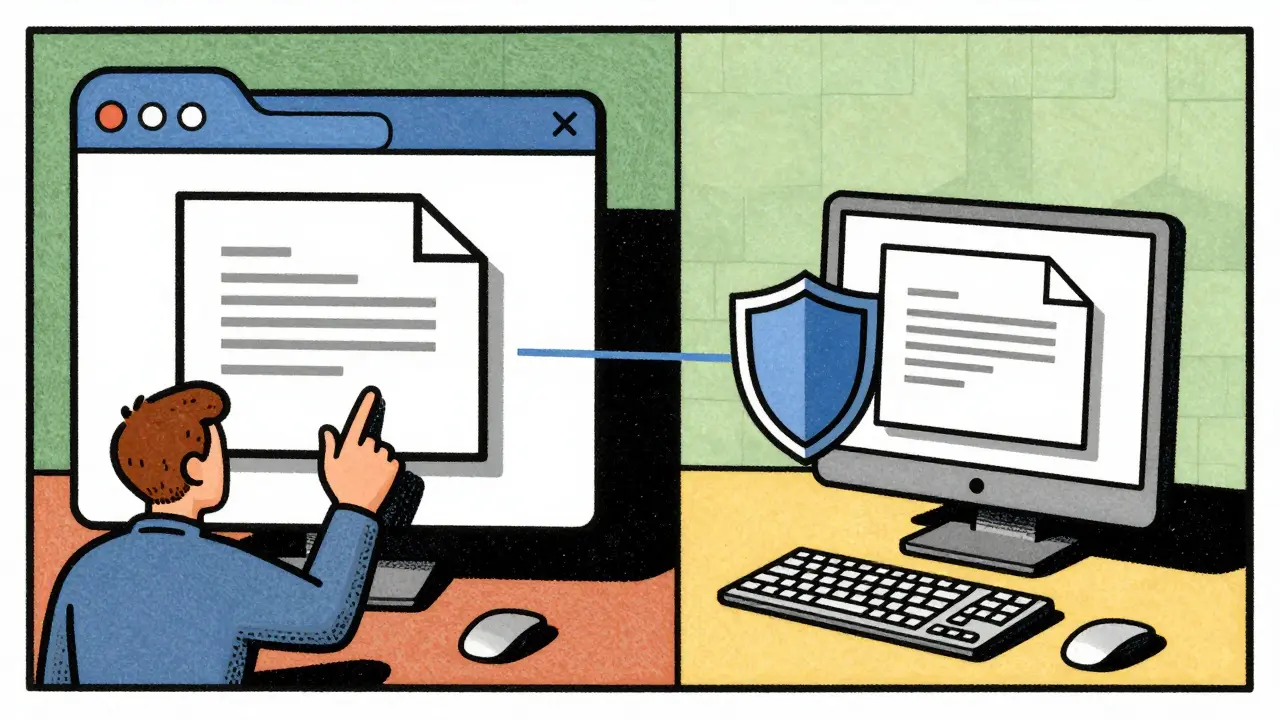
For many organizations, the biggest risk isn't just the metadata itself-it's the act of uploading sensitive documents to third-party servers to clean them. Many popular online PDF tools silently upload your file to their cloud infrastructure, process it, and send it back. This introduces a massive security vulnerability: you are handing over a confidential report to an unknown entity just to remove its secrets.
This is where client-side processing becomes critical. Tools that run entirely within your browser using WebAssembly and JavaScript ensure that the file never leaves your device. There is no server to hack, no cloud storage to leak, and no network traffic carrying your document content.
A prime example of this approach is Vaulternal's PDF metadata remover. Unlike traditional online converters, this tool processes the PDF locally on your machine. You drag the file in, the browser handles the stripping of the Info dictionary and XMP stream, and you download the clean version immediately. Because nothing is uploaded, it works offline once loaded and respects strict privacy protocols required for handling sensitive reports.
This method also offers a distinct advantage: speed and accessibility. There is no software to install, no license keys to manage, and no waiting for large files to upload to a slow server. For a marketing manager preparing a newsletter at 4 PM on a Friday, this frictionless workflow is often the deciding factor between cleaning the file and sending it raw.
Best Practices for Mass Distribution Workflows
Cleaning metadata should not be an afterthought. It needs to be baked into your content production pipeline. Here is how to structure your workflow to prevent accidental leaks:
- Inspect First: Before removing anything, view the metadata. Some tools offer an "inspect" mode that shows you exactly what is hidden. Knowing what you are removing helps you understand what risks existed.
- Standardize the Output: Decide as a team whether you want to keep generic metadata (like "Company Name") or strip everything to zero. For external newsletters, stripping everything is safer.
- Verify After Cleaning: Use a secondary check. Open the cleaned PDF's properties again. If the Author field is blank or says "Unknown," you are good. If it still shows "Jane Smith," repeat the process.
- Automate Where Possible: If you use a CMS or email platform that generates PDFs automatically, configure the generator to output clean files. Many modern PDF generation libraries allow you to disable metadata injection at the source code level.
- Train Junior Staff: Make metadata cleaning part of the onboarding process for anyone who publishes content. Show them a real example of a leaked author name to drive the point home.

When Metadata Removal Isn't Enough
While scrubbing metadata protects against passive discovery, it does not protect against active attacks or unauthorized viewing. If your report contains highly sensitive financial data or personal identifiable information (PII), metadata removal is only Layer 1 of your security strategy.
Consider adding password protection. Adobe Acrobat allows you to set an owner password that restricts printing or copying, and a user password that prevents opening. However, be cautious: requiring passwords for mass-distributed newsletters can frustrate subscribers and increase support tickets. Usually, metadata cleaning combined with careful content review is sufficient for public-facing materials. Reserve encryption for internal-only reports shared via secure portals.
Another consideration is watermarking. Adding a visible watermark with the recipient's email address or "CONFIDENTIAL" discourages forwarding and helps trace leaks. But remember: watermarks are visible. Metadata is not. You need both strategies working together.
Troubleshooting Common Issues
The file size increased after cleaning. This is rare but can happen if the tool re-compresses the file inefficiently. Stick to tools that promise "identical pixel output" or lossless processing. If the size jumps significantly, try a different cleaner or use Acrobat's "Optimize PDF" feature afterward.
Some fields remain after cleaning. Certain PDFs contain custom metadata entries added by specialized software (e.g., CAD programs, legal e-discovery tools). These may not be caught by generic cleaners. Check the "Custom Properties" section in your PDF viewer. If they persist, you may need a more advanced script or manual editing via the Document Properties panel.
The PDF won't open after cleaning. This usually indicates corruption during the process. If you are using a browser-based tool, try refreshing and restarting. If it persists, the original file might have had structural errors. Re-export from the source application (Word, InDesign) before attempting to clean.
Does converting a Word doc to PDF remove metadata?
Not necessarily. When you export from Word to PDF, Microsoft often carries over author names, revision history, and keywords into the new PDF's metadata. You must explicitly choose "Document Properties" in the export dialog and uncheck "Include document properties" to avoid this. Even then, some residual data may remain, so a separate cleaning step is recommended.
Is it safe to use online PDF metadata removers?
Only if they are client-side. Most online tools upload your file to their servers, creating a privacy risk. Look for tools that explicitly state "no upload" or "processed locally in your browser." You can verify this by opening your browser's developer tools (Network tab) while using the service-if no file uploads occur, it is safe.
Can I restore metadata after removing it?
No. Once metadata is stripped, it is permanently deleted from that specific file copy. You cannot recover it unless you have the original source file (e.g., the .docx or .indd file) or a backup of the uncleaned PDF. Always keep a master copy with full metadata for internal archival purposes.
What is the difference between Info dictionary and XMP metadata?
The Info dictionary is the older, simpler metadata format defined in early PDF standards. XMP (Extensible Metadata Platform) is a newer, XML-based standard that supports richer data types and namespaces. Modern PDFs contain both. A thorough cleaner must strip both to ensure complete sanitization.
Do I need to clean metadata for internal company emails?
It depends on your company's data governance policy. For purely internal communications, metadata leakage is less risky since recipients are trusted employees. However, if those internal documents might be forwarded externally later, or if they contain sensitive HR/legal info, cleaning them proactively is a best practice to prevent future breaches.